
HELP & HOW-TO
How does Shopr membership billing and renewal work?
Understand where Shopr shows your membership price, billing frequency, renewal details and current terms.
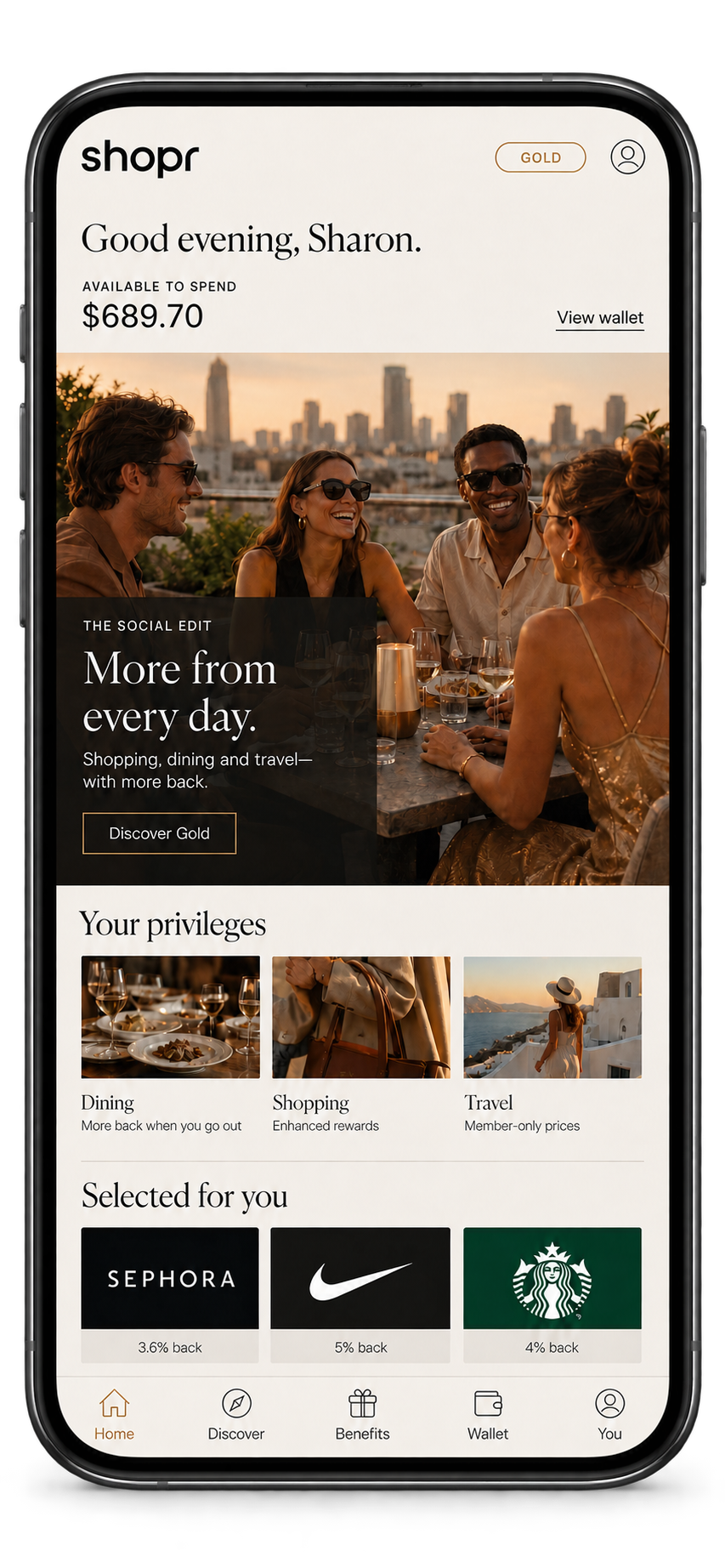
The Shopr Rewards app shows the current membership price, billing frequency, renewal arrangement and payment details before you join or confirm a change. Review that information carefully because the details available to you can vary.
Before you confirm a membership
- Price: check the amount currently shown for your selected membership.
- Billing frequency: confirm how often the membership will be billed.
- Renewal: review whether the membership renews and the date or arrangement shown.
- Payment: check the payment method and any applicable authorization details.
- Offers and terms: read any introductory-offer information, eligibility requirements and current terms.
Check an existing membership
Open the Shopr Rewards app and go to the membership or account area currently shown to you. Your available membership details and management options will appear there.
Review your membership details in the app before a renewal date or making a change. The latest in-app disclosure is the source of truth for your account.
If your billing details look different
Do not confirm a change until you have reviewed the price, timing and terms displayed in the app. If something looks unfamiliar, use the in-app support option or email [email protected] from the email address associated with your Shopr account.
ACCOUNT-SPECIFIC HELP
Need help with your account?
Balances, offer status, transactions and membership details are available only in the Shopr Rewards app.
For personal help, use the support option available inside the app or email [email protected].
Before contacting support, have the relevant offer, merchant, transaction date, amount and order confirmation available. Never send your password, security code or full payment-card details.