
HELP & HOW-TO
How do I update my Shopr account details?
Manage available personal details in the Shopr Rewards app and learn what to do when a change requires support.
Your Shopr profile and account information are managed privately in the Shopr Rewards mobile app. Open the app, review the account options available to you and follow the current on-screen prompts to make an available change.
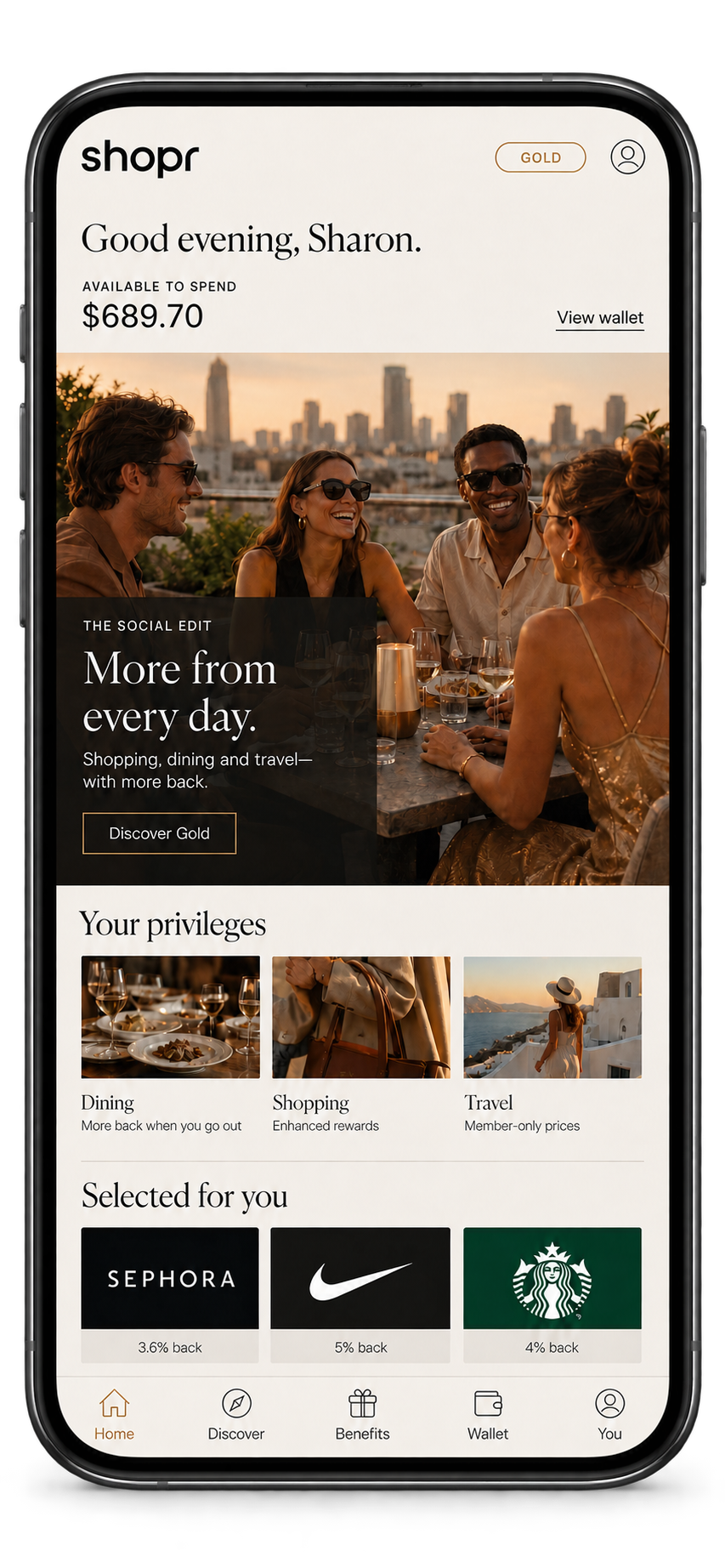
Update an available account detail
- Open the Shopr Rewards app and sign in to your account.
- Go to the profile, account or settings area shown in your version of the app.
- Select the detail you want to review and follow the on-screen instructions.
- Check the updated information carefully before confirming the change.
If you cannot make the change in the app
Some account details may require additional verification or support assistance. Use the support option available in the app, or email [email protected] from the email address associated with your account.
Keep your contact information current so important account and security messages reach you. Never include a password, sign-in code or full payment-card number in an email.
Where account management happens
There is no member sign-in or account area on the Shopr Rewards website. Membership, balances, reward activity and personal account information are managed in the mobile app.
ACCOUNT-SPECIFIC HELP
Need help with your account?
Balances, offer status, transactions and membership details are available only in the Shopr Rewards app.
For personal help, use the support option available inside the app or email [email protected].
Before contacting support, have the relevant offer, merchant, transaction date, amount and order confirmation available. Never send your password, security code or full payment-card details.